Parrot
Checked 24 September 2026
Parrot vs Granola
Granola and Parrot both skip the meeting bot and record from your computer. The difference is where the work happens. Granola streams the audio to cloud services to transcribe it, then turns your notes and the transcript into tidy meeting notes. Parrot transcribes on your Mac and helps during the call, with answers from your own documents. Granola has apps for Windows and phones; Parrot is Mac only.
Released 24 Sept 2026. 17 MB. macOS 14 or later on Apple Silicon. or build from source
The short answer
Pick Parrot if
you want calls to stay on your Mac, want answers to come to you mid-call, or want it free for good.
Pick Granola if
you need Windows or your phone, share notes with a team, or want your calendar and CRM connected.
The big differences
Price
Parrot
YesFree, no account
Granola
Partly30 days free, then $14 a month
Where your audio goes
Parrot
YesStays on your Mac
Granola
NoCloud transcription
Help during the call
Parrot
YesAnswers from your documents
Granola
PartlyA chat, when you ask
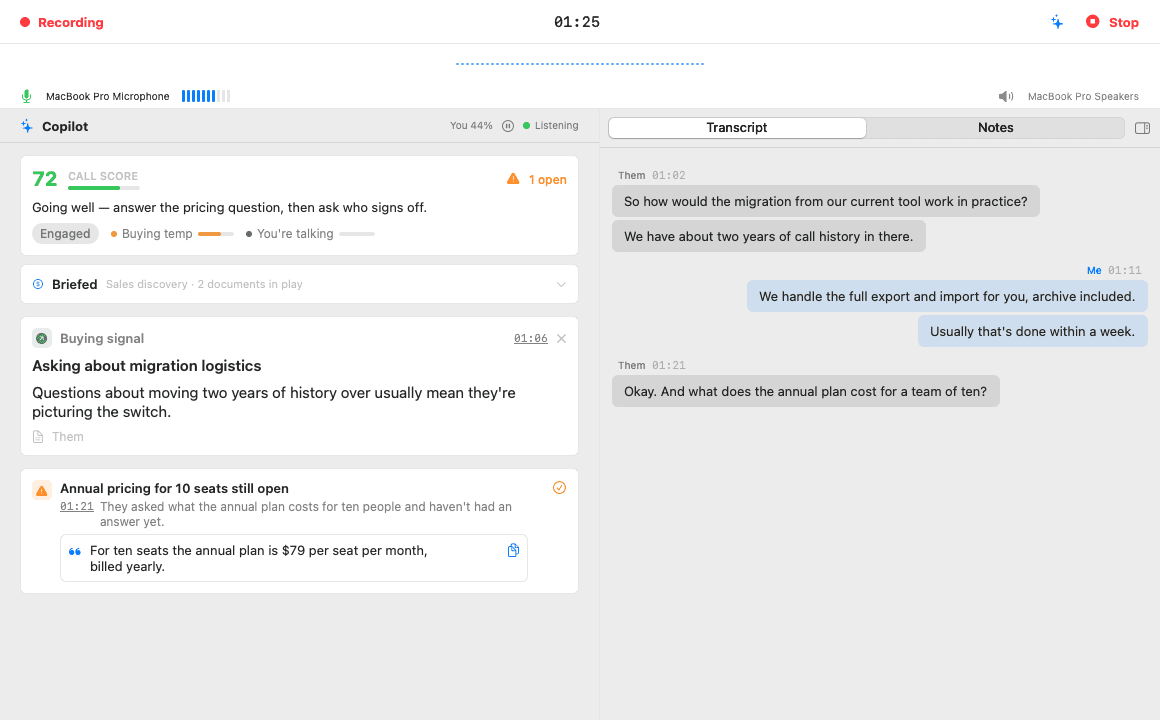
What help during the call looks like
When the other side asks something your documents cover, the answer appears on a card within seconds, with the file it came from. Open questions stay pinned until you answer them, and a one-line coach tells you how the call is going.
Feature by feature
| Feature | Parrot | Granola |
|---|---|---|
| Privacy | ||
| Bot in the call | YesNo. It records what your Mac plays and hears. | YesNo. It records your mic and system audio. |
| Where your audio goes | YesStays on your Mac. Sent out only if you pick Groq or Deepgram for transcription. | NoStreamed to cloud transcription providers such as Deepgram and AssemblyAI. The audio isn't kept; notes and transcripts are stored in the US. |
| Works offline | YesYes, with Whisper and Ollama. | PartlyYou can read your notes offline. Transcription and summaries need the internet. |
| Open source | YesYes, GPL-3.0. | NoNo. |
| During the call | ||
| Help during the call | YesYes. Answers from your own documents, open questions pinned, a live coach. | PartlyA live transcript, and a chat you can ask during the call. Nothing is suggested unless you ask. |
| Choice of AI | YesClaude, Ollama, or any OpenAI-compatible server, with your own keys. | NoChosen by Granola. Paid plans can pick a standard or thinking model in chat. No local models or your own keys. |
| Cost and platforms | ||
| Price | YesFree. No paid plan. Cloud AI with your own key costs a few cents per call hour. | PartlyFree plan keeps 30 days of meetings. Business is $14 per user a month, Enterprise $35. |
| Runs on | PartlyMac only: macOS 14 or later on Apple Silicon. | YesMac (macOS 14 or later), Windows, iPhone, Android and Apple Watch. |
Where Granola is better
- Apps for Windows, iPhone, Android and Apple Watch, so it also covers in-person meetings and phone calls.
- Team features: shared folders and workspaces, and chat across a team's meetings.
- Integrations with Notion, HubSpot, Slack and Zapier, plus an API.
- It knows your calendar: meeting reminders, pre-meeting briefs and follow-up email drafts.
- A polished notepad that turns your own notes and the transcript into meeting notes.
Where Parrot is better
- Your audio stays on your Mac unless you pick a cloud engine. Granola always sends it to cloud transcription.
- It doesn't wait to be asked: when the other side asks something, the copilot answers from your own documents.
- Free with no limit on your history. Granola's free plan keeps 30 days.
- Open source, works offline, and lets you pick the AI, local models included.
Try both on the same call
- 1
Keep Granola
Nothing to cancel or move. Parrot works on its own, next to what you already use.
- 2
Hit record in Parrot on your next call
It records what your Mac hears, so both can record the same call.
- 3
Compare afterwards
Read both sets of notes and keep whichever helped more. Parrot costs nothing to try or to keep.
Questions
- Can I use Parrot and Granola together?
- Yes. They don't touch each other, and Parrot never joins the call, so it adds nothing the other people can see.
- Why is Parrot free?
- It started as Uygar's own tool for client calls and is open source under GPL-3.0. There are no servers to pay for, because it all runs on your Mac. If you use cloud AI, you pay that provider directly with your own key, usually a few cents per call hour.
- Can I bring my Granola recordings?
- If you have the audio as a file, yes. Drop it on Parrot and it's transcribed, split by speaker and summarised like a live call. Notes you wrote in Granola stay there.
- Is Parrot on Windows or iPhone?
- No. Parrot is Mac only: macOS 14 or later on Apple Silicon. If you need another platform, Granola is the better pick.
Sources, checked 24 September 2026
Checked on 24 September 2026 against their own pages. Prices and features change, so check before you buy. If something here is out of date, email me and I'll fix it.