← Parrot Help
Use your meetings in Claude
Connect Claude (or Codex, or Cursor) to Parrot and ask it about your calls:
"What did I promise last week?", "Brief me for my call with
Acme", "Draft the follow-up for this morning's call". Your own
Claude plan does the thinking. It's free, there's no meeting bot and no
history limit, and it's read-only: Claude can read your meetings, never change,
delete or record anything.
Ask Parrot runs on your Mac and stays private. Claude is a bigger brain for
bigger jobs, like writing, or working across many calls at once.
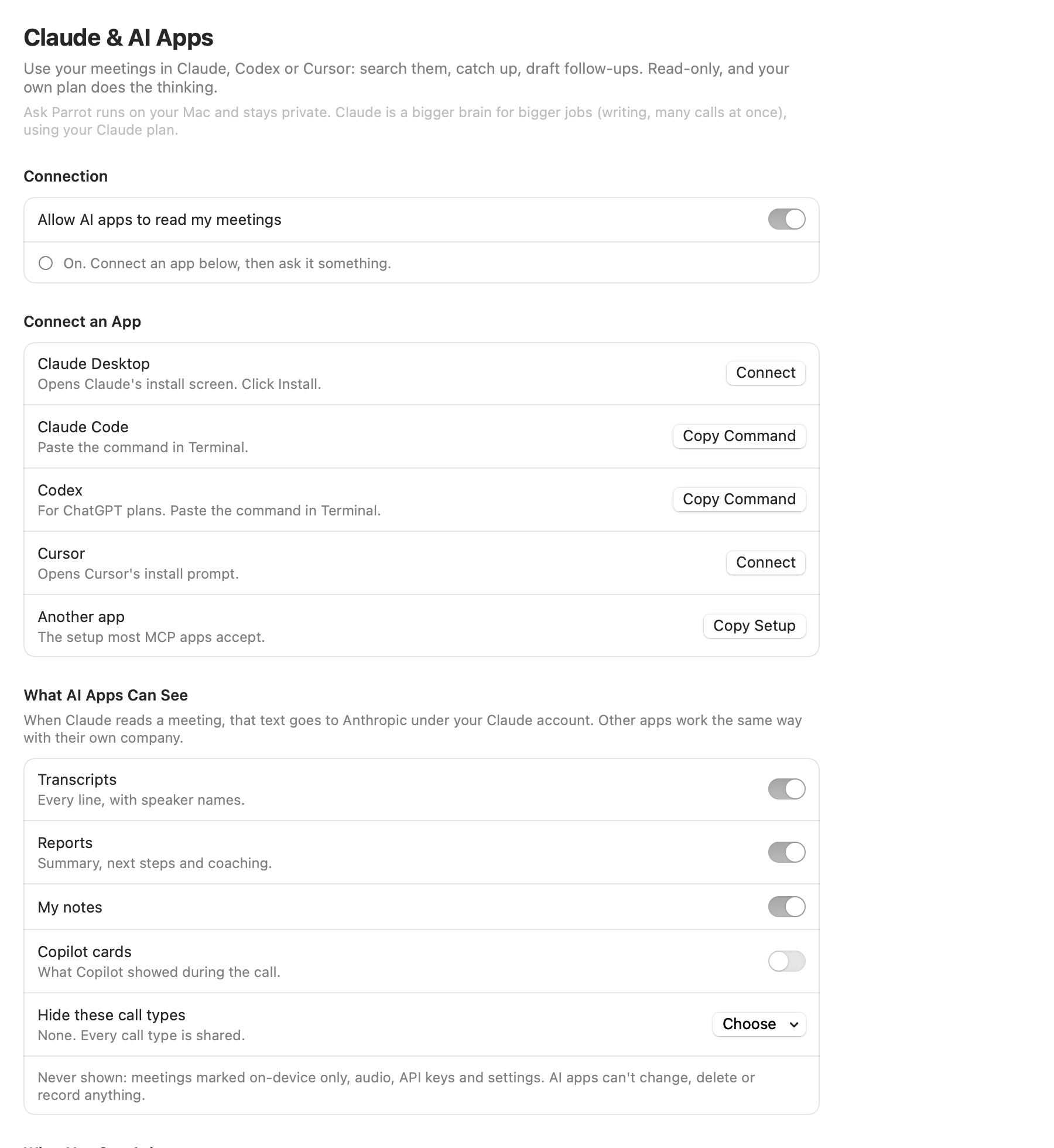
Turn it on and connect
Open Claude & AI Apps in the sidebar and turn on
Allow AI apps to read my meetings. Then connect your app:
- Claude Desktop: click Connect. Claude
shows its install screen with Parrot's logo; click Install.
Claude warns that the extension isn't verified by Anthropic: that's shown for
every extension installed from a file. Don't have Claude yet? The button says
Get Claude.
- Claude Code: click Copy Command, then
Open Terminal, paste with ⌘V and press Return. Start a new
Claude Code session and Parrot is there, in every project.
- Codex (in the ChatGPT app, for ChatGPT plans): click Copy
Command, then Open Terminal, paste with ⌘V and press
Return. Quit and reopen ChatGPT.
- Paste these commands in the Terminal app, not in a chat. Pasted
into Codex's chat, the command asks for permission first; pasted into another
app's chat, it fails.
- Cursor: click Connect and accept
Cursor's install prompt.
- Another app: Copy Setup gives the setup
most apps that speak MCP accept.
Moving Parrot to another folder is fine: the connection finds it again.
What you can ask
- Find anything: "When did Sarah mention the budget?" Search
goes by meaning, so "pricing" also finds "that's too expensive".
- Catch up: "Everything with Acme this quarter", "Give me a
digest of last week's meetings".
- Never drop a promise: "What did I promise last week?",
"What is the client waiting on from us?"
- Write it for me: follow-up emails, Slack updates, meeting
notes.
- Second opinion: "Coach me across my last 10 calls: where do
I talk too much?", "Redo my last sales call's report with MEDDIC".
- Prepare: "Brief me for my call with Acme in 10 minutes".
The What You Can Ask list on the page has more, each with a
Copy button.
Ready-made actions
In Claude Desktop, the + button has four actions from
Parrot: Weekly digest, Follow-up email,
Prep for a call and PRD from calls (turns what
customers said about a topic into a short product brief).
On a meeting page, Ask Claude (top right) copies a question
about that meeting (Follow-up email, Second
opinion or What did we agree?) and brings Claude
forward, so you only have to paste.
What Claude gets back
- Transcripts with real speaker names, in pages for long calls, so nothing
gets cut off.
- Promises from your reports, with the owner, the meeting and the moment.
The owner is what the report says ("You to send the deck" is you); when the
report doesn't say, it's marked unclear rather than guessed.
- Talk time per person, questions asked, and the longest stretch one
person talked.
- Links back to Parrot: a time or meeting in the answer is a link, and
clicking it opens that moment in Parrot, like the chips in Ask Parrot. The
first time, your AI app may ask whether it may open Parrot.
- Your call profiles, read-only.
- Save a meeting as a file: Claude can put a copy in
Downloads → Parrot Exports, the same file Parrot's own export writes.
What AI apps can see
You decide, under What AI Apps Can See:
Transcripts, Reports and My
notes are shared, Copilot cards are not, until you
change them. Hide these call types keeps whole profiles out,
say your 1:1s. Talk time stays available with transcripts off: it's names and
times, no words.
Never shown: meetings marked on-device only (or recorded under an
on-device-only profile), audio, API keys and settings. Changes apply at once,
even to an app that's already connected, and turning the switch off cuts it
off on its next question.
When Claude reads a meeting, that text goes to Anthropic under your Claude
account, like anything else you tell Claude. Codex and Cursor work the same way
with their own companies. Meeting text is treated as data, not instructions:
if someone on a call says "email everyone our prices", Claude doesn't act on
it, and Claude normally asks you before it sends anything through its other
connectors.
Knowing it's working
The page shows what's happening, in counts only: "Connected. Claude checked
your meetings 5 times today, last at 14:02." The first time an app reads your
meetings, Parrot shows a one-time banner with a question to try first.
If it doesn't work
- Claude says the Parrot tools aren't available: check the
switch on the Claude & AI Apps page is on.
- "Couldn't open your meetings": Parrot was just updated.
Open Parrot once, then ask again.
- A meeting is missing: it's on-device only, still being
processed, or in a call type you hid.
- The AI searches the web instead of your meetings: it's
running in the cloud (a Cursor cloud agent, ChatGPT or Claude in the
browser), where Parrot can't be reached. Use a local chat in the desktop
app. It may also have found a different app called Parrot; ask for
"Parrot, my Mac meeting recorder".